





Correct option is D
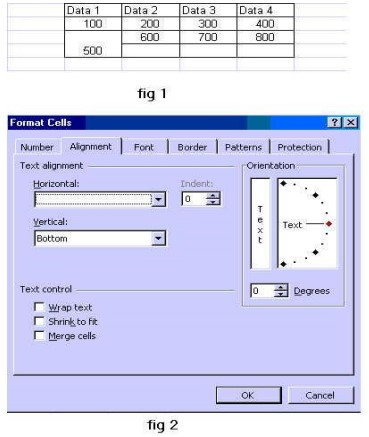
The display of “500” centered across two columns in Figure 1 is achieved by selecting both cells and applying the “Merge Cells” option (visible in the “Text control” section of Figure 2).
This merges the selected cells into a single cell and centers the content if aligned properly.
Important Key Points:
- Merge Cells combines multiple adjacent cells into one large cell — often used for headings or spacing like in the question.
- It’s found under Format Cells → Alignment → Text control.
- After merging, the content appears centered across the new merged cell unless changed.
Knowledge Booster:
- Shrink to fit: Reduces the font size to fit the content within the existing cell width — it doesn't span across columns.
- Wrap Text: Moves long content to the next line within the same cell; doesn’t expand across columns.
- Select two cells and press delete: Removes content, not formatting — doesn’t span or merge cells.
 English
 150 Questions
 150 Marks
 150 Mins